Look - Keyboard-First Launcher#
Look is a keyboard-first, local-first launcher for macOS, Windows, and Linux. It gives you instant access to apps, files, folders, and system settings without leaving the keyboard.
Try it live#
Type in the launcher below - fuzzy search, a"/f"/d"/r" prefixes, and inline calc all work, right in your browser. Press Cmd/Ctrl+/ for command mode or Cmd/Ctrl+Shift+, for Appearance settings. This is a simplified offline playground; the real Look is faster and does more. Open the full-screen demo for more room.
Why Look?#
If you're tired of slow launchers or expensive tools like Raycast, Look is a free, lightweight alternative that stays out of your way.
- Local-first - all indexing happens on your machine
- Fast - typical search under 1 ms on a 2000-item index, with bounded query-time scoring
- Usage-aware - results improve as you use them
- Minimal permissions - no Accessibility, Full Disk Access, or Screen Recording
- Private - no account, no telemetry; network only on explicit or opt-out actions
- Native shells - SwiftUI on macOS, a GPU-drawn gpui shell on Windows/Linux with no browser engine in the process, both over one Rust engine
Highlights#
- Scoped search -
a"apps,f"files,d"folders,r"regex,rc"recent,c"clipboard,t"/tw"translate - Inline calculator - type
2^10,4!,200*15%,sqrt(2); no mode switch - Web answers (optional) - an answer card for questions and unindexed entities, plus search suggestions
- Command mode - pomodoro, daily todo with streaks, speed test, port-based kill, shell, system info
- Super actions - Bluetooth, Wi-Fi, battery, theme, and more from the empty home screen
- AI conversation (macOS, beta) -
>for calendar actions, file recall, and text operations on a local model - Themeable - 8 presets including Kindle (light) and Liquid (glass), plus floating tile layout
- Your keys - every in-app chord is rebindable in Settings → Shortcuts and saved to the config file, so it travels with your dotfiles
Where to go next#
| Page | What's there |
|---|---|
| Installation | Install, first launch, uninstall |
| Getting Started | Basic usage, query prefixes, quick math |
| Keyboard Shortcuts | Every key, in one place |
| Search Modes | What the main input does beyond apps and files |
| Result Actions | What you can do to the selected row |
| Home Screen | Running apps and the super-actions strip |
| Command Mode | /calc, /todo, /speed and the rest |
| AI | The > conversation mode (macOS, beta) |
| Declared Sources | Add your own rows from folders, files and commands |
| Settings Panel | The in-app settings, tab by tab |
| Configuration | Every ~/.look/config key |
| Troubleshooting | When something doesn't work |
Installation#
macOS#
Requirements: macOS 15.0+
brew install --cask lookThen bind Cmd+Space to Look - disable Spotlight's shortcut in System Settings → Keyboard → Keyboard Shortcuts... → Spotlight. To keep Spotlight where it is, record a different key in Settings → Shortcuts, or set launcher_hotkey in ~/.look/config.
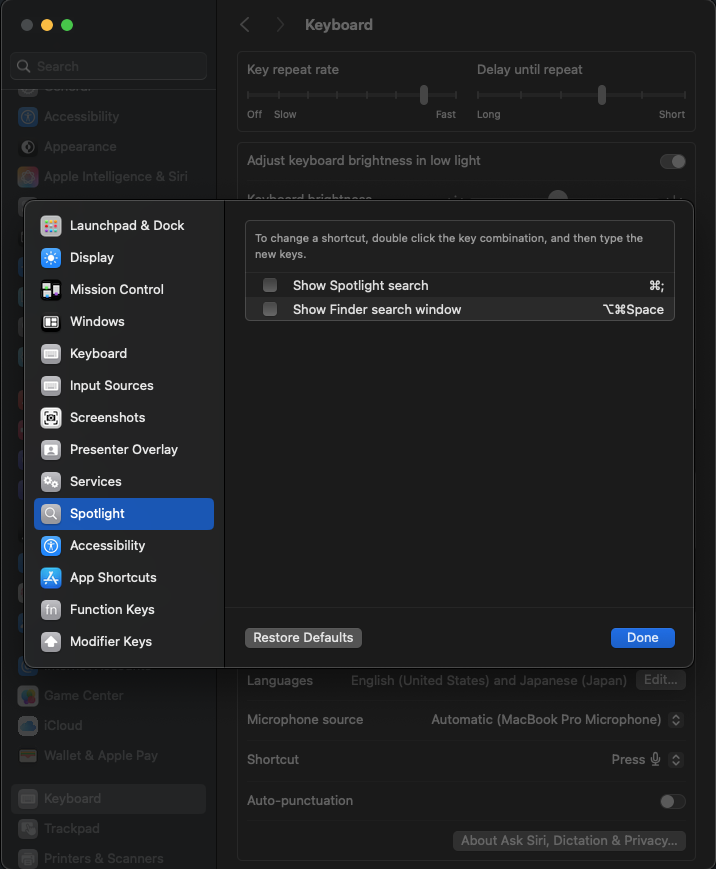
Update:
brew upgrade --cask lookReleases ship one build per architecture, Apple Silicon and Intel. Homebrew installs the Apple Silicon build; on an Intel Mac use the curl installer below, which picks the archive for your machine.
Other macOS install options (curl, pin version)
curl -fsSL https://raw.githubusercontent.com/kunkka19xx/look/main/scripts/install-look.sh | bashPin a version or fork:
curl -fsSL https://raw.githubusercontent.com/kunkka19xx/look/main/scripts/install-look.sh | bash -s -- --version <version> --repo kunkka19xx/lookNix (flake), Apple Silicon:
nix profile install 'github:kunkka19xx/look?dir=apps/linows'The same signed, notarized bundle Homebrew ships, so the Accessibility and Automation grants survive an update. nix-darwin and Home Manager modules: see BUILDING.md.
Linux#
Arch Linux (AUR):
yay -S look-bin
# or
paru -S look-bin
Or without an AUR helper:
git clone https://aur.archlinux.org/look-bin.git
cd look-bin
makepkg -si
Ubuntu/Debian:
curl -fsSL https://raw.githubusercontent.com/kunkka19xx/look/main/scripts/linux/install-look.sh | bashOr download the .deb manually from Releases and run sudo dpkg -i Look_*.deb.
Any distro (AppImage):
chmod +x Look_*.AppImage
./Look_*.AppImage
NixOS (flake):
nix run github:kunkka19xx/look?dir=apps/linows
# or install to profile
nix profile install github:kunkka19xx/look?dir=apps/linows
Pre-built binaries are served via Cachix. For declarative NixOS install and the Home Manager module, see the README.
Released Linux artifacts are x86_64 only; open an issue if you need an ARM build. On GNOME the bundled Shell extension supports GNOME 45 to 51.
Windows#
One PowerShell line, no admin required:
iex "& { $(irm https://raw.githubusercontent.com/kunkka19xx/look/main/scripts/windows/install-look.ps1) }"Or with Scoop:
scoop bucket add extras
scoop install extras/look
The script resolves the latest release, downloads the installer, verifies its SHA256 against the published checksums, and installs per user into %LOCALAPPDATA%\Programs\Look with a Start Menu shortcut. For a manual install, download Look_<version>_x64-setup.exe from Releases. Released builds are x64; Windows on ARM runs them under emulation.
SmartScreen may warn on first run - click "More info → Run anyway". The launcher's global hotkey defaults to Alt+Space; record a different one in Settings → Shortcuts, or set launcher_hotkey in ~/.look/config and reload with Ctrl+Shift+;.
First Launch#
After installing, launch with lookapp from a terminal, or search "Look" in your app launcher / Start menu. On first run, Look indexes your apps, files, and folders in the background - results appear as indexing completes.
| Platform | Toggle hotkey | Notes |
|---|---|---|
| macOS | Cmd+Space | Disable Spotlight's shortcut first |
| Windows / Linux | Alt+Space | Autostarts on login (on full DEs like GNOME/KDE) |
Both defaults are rebindable - see `launcher_hotkey`.
Window manager users (i3, sway, Hyprland, niri): Autostart via .desktop files only works on full desktop environments, so add Look to your WM config manually. On i3, sway, and Hyprland the Alt+Space hotkey and float rules register themselves at runtime, so the autostart line is all you need. niri has no runtime bind API, so its Alt+Space goes in config.kdl by hand; Look shows the exact stanza on first run. See the README for examples.
GNOME desktops: Log out and log back in after the first install so the GNOME Shell extension (for window focusing on Wayland) can load.
Uninstall#
# macOS
brew uninstall --cask look

# Arch
yay -R look-bin

# Ubuntu/Debian
sudo dpkg -r lookapp

# Windows (installer script)
iex "& { $(irm https://raw.githubusercontent.com/kunkka19xx/look/main/scripts/windows/install-look.ps1) } -Uninstall"

# Windows (Scoop)
scoop uninstall look
Remove local state (optional):
# macOS
rm -rf ~/.look ~/Library/Application\ Support/look && rm -f ~/.look.config

# Linux
rm -rf ~/.look ~/.local/share/look && rm -f ~/.look.config

# Windows
Remove-Item -Recurse "$env:LOCALAPPDATA\look"Permissions#
Look is designed to need as few permissions as possible:
- No Accessibility permission required (macOS)
- No Full Disk Access required - Look indexes standard user directories. Add extras via
file_scan_extra_rootsin~/.look/config. - No Screen Recording required (macOS)
- Network access is used only for explicit actions (
t"translation,tw"dictionary lookup,Cmd/Ctrl+Enterweb search) and the optional web answers feature, which you can turn off withai_enabled=false
Getting Started#
Basic Usage#
- Open Look -
Cmd+Space(macOS) orAlt+Space(Windows/Linux) - Type to search - apps, files, folders, and settings
- Navigate -
Tab/Shift+Tabor arrow keys - Open -
Enter
Path-like queries work too: git/project/readme biases toward path matches.
Query Prefixes#
Prefixes narrow the search scope. Type a single " to browse them all in a menu, then pick one to drop it into the field.
| Prefix | Mode | Example |
|---|---|---|
" | Browse all prefixes | " |
a" | Apps only | a"term |
f" | Files only | f"term |
d" | Folders only | d"term |
r" | Regex search (case-insensitive) | r"pattern |
rc" | Recent files/folders | rc"report |
ps" | Find and kill running processes | ps"node |
c" | Clipboard history | c"term |
ci" | Copied images | ci"1920 |
t" | Quick translation | t"hello |
tw" | Dictionary lookup | tw"word |
> | AI conversation (macOS, beta) | >add lunch @ 1pm |
Each one is detailed under Search Modes, and > has its own AI page.
Apps only#
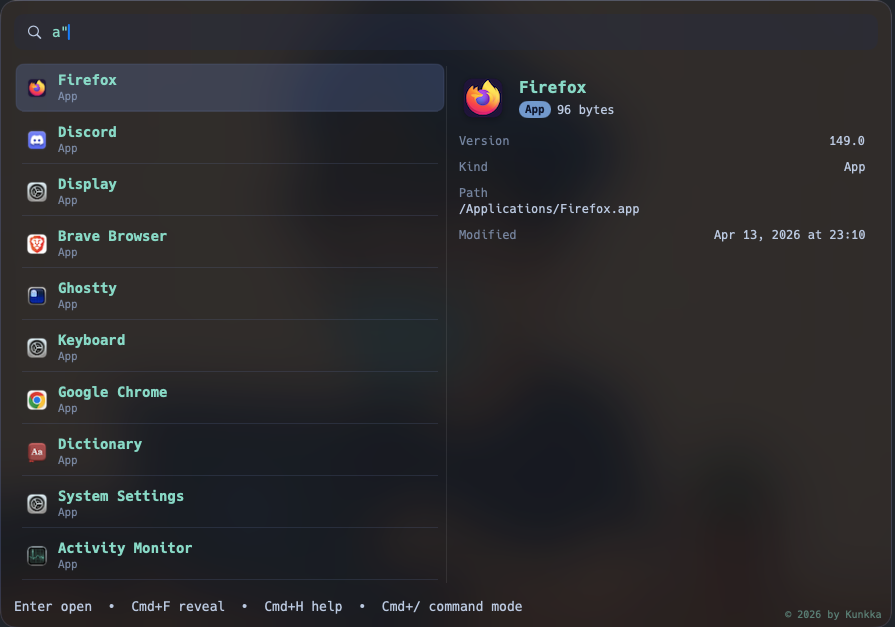
Directories only#
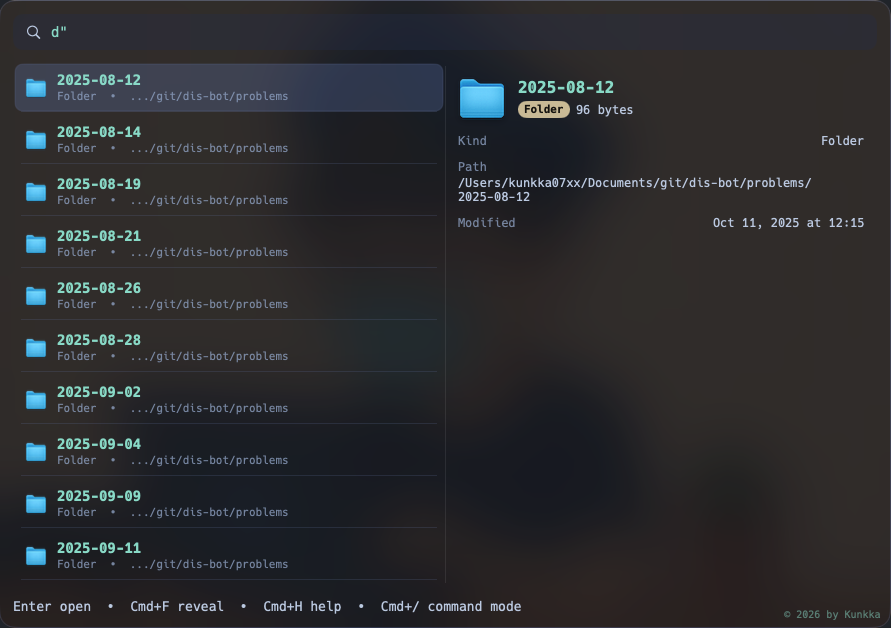
Quick Math#
Type an expression and Look pins a Calculator row above the results. Enter copies the value and hides the launcher.
2^10→1,024200*15%→30sqrt(2)→1.4142135624
Dates and resolutions (20-05-2026, 1920x1080) stay ordinary searches. Full grammar under Inline Calculator.
Ask a Question#
With web answers on (the default), a question or an unindexed entity like sir alex ferguson shows an inline answer card. Prefix queries never trigger web lookups. See Web Answers.
Query Aliases#
Map a search term to related apps, e.g. alias_note=Notion|Obsidian|Apple Notes. Syntax under Search Aliases.
Search Modes#
What the main input does beyond app and file search. Prefixes are typed at the start of the query.
Quick Folders#
Type a folder's name to pin it to the top of results (Enter opens it, Cmd+F reveals it) - even when it isn't part of the indexed file roots:
- Home folders -
Desktop,Documents,Downloads,Pictures,Movies,Music. - `Applications` - pins the
/Applicationsfolder (macOS). The indexer only walks Desktop/Documents/Downloads, so this is how you jump to/Applications; the apps inside it stay searchable as apps (a"). - `Trash` - pins the Trash;
Cmd+Don it empties the Trash (see Move to Trash above). Its icon reads empty or full to match the item count (macOS).
Open a URL#
Type something that looks like a URL and Look offers to open it in your browser - no prefix needed.
- A structural URL (with a scheme, port, path, or
localhost/IP - e.g.http://localhost:3000orexample.com/docs) shows an Open in browser row at the top of the results. - A bare
host.tld(e.g.github.com) shows the row after your local results, so it never displaces a real file or app match. - URLs you open this way are remembered and resurface as Recently opened rows, ranked by frecency and filtered as you type.
Shared between the macOS and Windows/Linux apps.
Recent Files & Folders (`rc"`)#
Type rc" to browse what you most recently opened and what recently landed on disk (downloads, screenshots), newest first. Add a term to filter: rc"report.
Enteropens an entry,Cmd/Ctrl+Freveals itCmd/Ctrl+Dmoves the entry's file to trash
Running Processes (`ps"`)#
Type ps" to list running processes, or ps"node to filter them.
Entermeasures that process's CPU on demand. Nothing is sampled until you ask, so moving the selection stays instantCmd/Ctrl+Dkills the selected processCmd/Ctrl+Ccopies its PID
Typing filters a cached snapshot rather than walking the process table again; the list re-enumerates when you enter the mode and after a kill. To target whatever owns a port instead of a named process, use `kill`.
Clipboard History (`c"`)#
Access recently copied text items:
- Type
c"to enter clipboard mode - Browse recent text clips
- Press
Enterto copy an item back to clipboard - Press
Cmd/Ctrl+Ito paste it straight into the app you came from - the clip stays on the clipboard afterwards - Press
DeleteorCmd/Ctrl+Dto remove the selected entry from history
On macOS the history is kept in memory and clears on restart; on Windows/Linux it is saved to disk and persists between launches. File and folder copies (Cmd+C, Cmd+P) are never recorded.
Size is clipboard_history_limit in Configuration.
Clipboard histories search example#
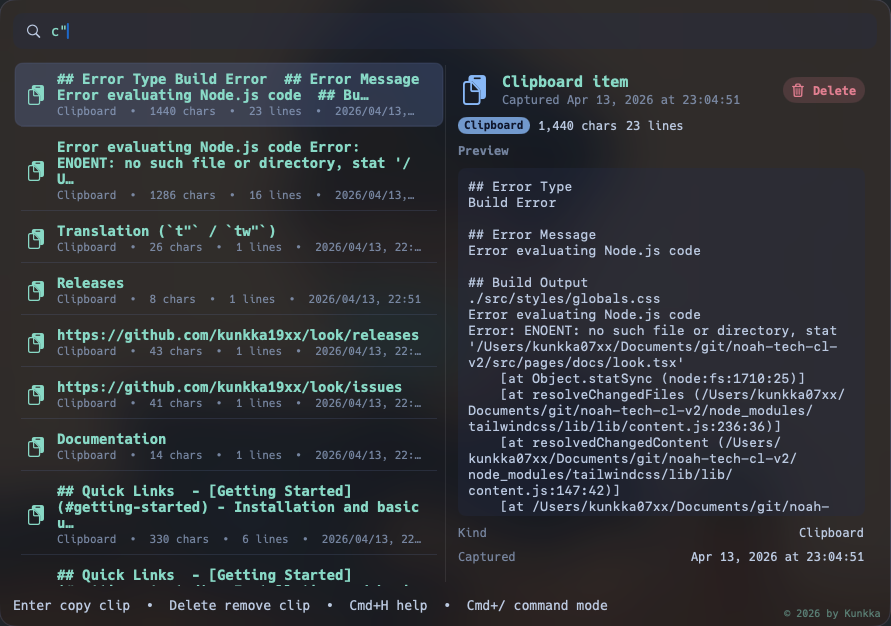
Copied Images (`ci"`)#
A separate history for pictures, since text and images do not mix in one list:
- Type
ci"to list copied images, newest first - Add a term to filter by what the row says, for example
ci"1920orci"9/14 - Press
Enterto put the image back on the clipboard, as pixels and as a file - Press
Cmd/Ctrl+Ito paste it into the app you came from - Press
DeleteorCmd/Ctrl+Dto remove it from history, which also deletes its file
Each image is written as a PNG next to Look's database, the row shows a thumbnail of it, and the row is named after the app the copy came from: Image from Firefox, 9/12/26, 11:28. macOS also files an image copied in Finder under its filename; on Windows and Linux the history takes the pixels a copy carries (screenshots, "Copy Image" in a browser), and a file copied in a file manager stays a file copy.
On GNOME and KDE Wayland nothing tells Look which window was in front, so rows there read Image from screen instead of naming the app.
Size is clipboard_image_limit in Configuration, capped well below the text history because each entry is a file on disk.
Pasting into the app you came from#
Cmd/Ctrl+I types the paste for you instead of leaving it on the clipboard. On macOS it needs Look enabled under System Settings → Privacy & Security → Accessibility, and it cannot reach a secure input field (a password prompt, sudo in a terminal) - Look says so rather than pasting nothing. On Linux it sends Ctrl+Shift+V when the app you came from is a terminal, since Ctrl+V there is the literal-next key; GNOME needs Look's shell extension, which it installs itself. Where a Wayland session offers no way to type into another window, Look says so and leaves the clip copied for you to paste by hand.
Translation (`t"` / `tw"`)#
Quick translation without leaving the launcher:
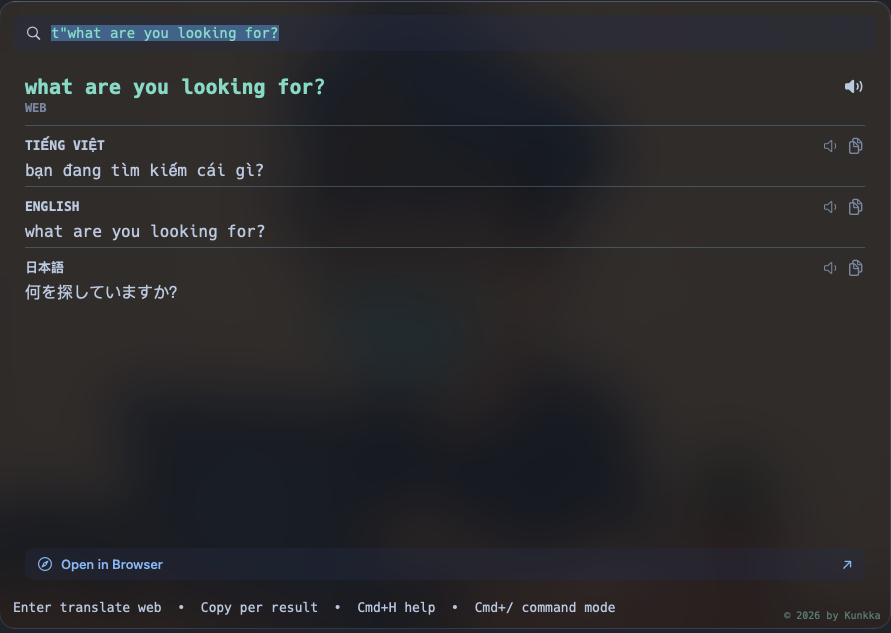
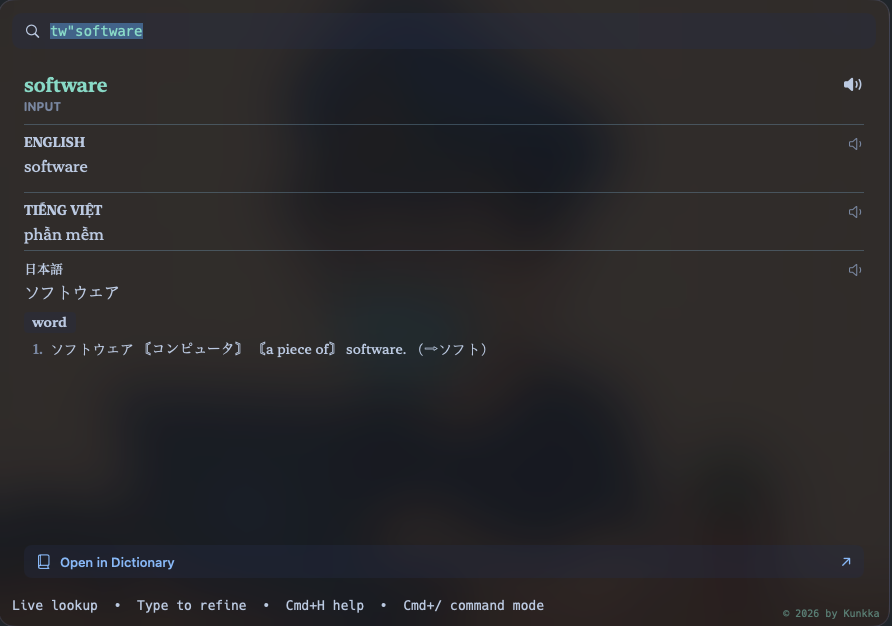
t"hello→ Translate "hello" to Vietnamese/English/Japanesetw"word→ Dictionary lookup with definitions and examples
Translate sentences, words via web#
Search words by MacOS's built-in LookUp#
Translation requires network connectivity.
Inline Calculator#
Type an expression in the main input and Look pins a Calculator row above every other result. No prefix, no mode switch.
Enteror a click copies the value and hides the launcher.- Clipboard history keeps the worked expression (
2+2 = 4) so you can find it again later, but pasting still gives you just the value. - Shape decides what counts as math, not spacing, so a date, a resolution, or a ratio (
20-05-2026,1920x1080,16:9) is left alone and stays a normal search.
Grammar: exponent (^), factorial (!), constants pi/e, functions sqrt/abs/round/floor/ceil, % as both percent shorthand and modulo, implicit multiplication (2pi, 3sqrt(9)), and comma-grouped or scientific input (1,500, 1e6).
2^10→1,0244!→24200*15%→3010%3→12*pi→6.28318530721,500 + 1→1,501
The same shared engine backs the calc command panel. Results are limited only by what a 64-bit float can represent.
Web Answers (optional)#
With web answers enabled (default), Look answers question-like queries inline:
- Knowledge lookups: a question or a multi-word entity that isn't indexed locally (e.g.
sir alex ferguson) shows an answer card sourced from DuckDuckGo/Wikipedia, with clickable source labels. - Instant converters: currency (
100 usd to eur), weather, and crypto queries match their own narrow grammar and answer immediately. - Not arithmetic: math no longer answers in the card. It gets its own pinned Calculator row above the results (see Inline Calculator).
- Web search suggestions: autocomplete rows appear below local results;
Enteropens the suggestion in your browser. - Layout: the answer card renders full-width when there are no local results, side-by-side with suggestions, or stacked above local results, depending on what the query returns.
- On macOS, Look can additionally fall back to the on-device Apple Intelligence model when local and web sources have no answer. Linux/Windows use web sources only.
The > conversation mode, calendar and reminder actions, file recall, and text operations are a separate macOS-only feature set with its own page: see AI.
Privacy notes:
- Prefix queries (
a",f",d",r",ps",c",ci",rc",t",tw",:cmd) never trigger web lookups - they are launcher scopes, not questions. - Turn the whole feature off in Settings → Advanced, or set
ai_enabled=falsein~/.look/configto run fully offline.
Result Actions#
Actions on the currently selected result.
Action Menu (`Cmd/Ctrl+K`)#
Every action the selected row offers, each listed with its chord. This is the discovery surface: the menu teaches the shortcuts and then gets out of the way.
| Entry | Chord | Notes |
|---|---|---|
| Open | Enter | The system default action |
| Edit | Cmd/Ctrl+E | Needs a preferred editor |
| Open terminal here | Cmd/Ctrl+T | Needs a preferred terminal |
| Reveal | Cmd/Ctrl+F | File manager |
| Copy path | Cmd/Ctrl+C | The path as text |
Once a tool resolves, the entry names it: Edit reads Edit in Zed, so the menu tells you what the chord is about to open. An action with no tool declared is still listed and explains what to set when you press it, rather than silently doing nothing.
Cmd+J / Cmd+K or the arrows move, Enter runs, Esc closes.
A row from a declared source whose block names then targets shows those instead - the block author already chose that row's vocabulary. The chords above keep working on it either way.
Any of your own do blocks that declared `applies` join the menu here too, after the built-in entries, on every row they match.
Edit (`Cmd/Ctrl+E`)#
Open the selected file or folder in your own editor.
- On a file row,
text_editor; on a folder row,code_editor. Declare only one and it covers both. - A terminal editor (
nvim,helix,micro, …) is run inside your declaredterminal, at the right path. - Apps are not eligible - see Preferred Tools for why, and for the keys themselves.
Open Terminal Here (`Cmd/Ctrl+T`)#
Open your declared terminal at the selected row's directory: the folder itself for a folder, the parent for a file. The new window starts in an interactive login shell, so closing it closes the window once.
Copy File or Folder (`Cmd/Ctrl+C`)#
With a file or folder selected, press Cmd+C (macOS) or Ctrl+C (Windows/Linux) to copy it to the clipboard.
- Paste into a file manager, Mail, Slack, or any app that accepts files → pastes the actual file/folder
- Paste into a text editor or terminal → pastes the path as a string
- Works on results of kind
fileandfolder; apps useEnterorCmd/Ctrl+Finstead
Multi-Pick Files/Folders (`Cmd/Ctrl+P`)#
Build up a set of files/folders, then paste or open them anywhere in one go.
Cmd+Pon a focused file or folder toggles it in or out of the picked set; every toggle rewrites the system pasteboard with all picked items.- The right panel switches to a Picked (N) list while the set is non-empty: each row has an
Xto remove a single item, plus a Clear all button. Shift+Enter(or the Open all button) opens every picked item at once.Cmd+Shift+Pclears the entire picked set and the pasteboard.- Paste behavior matches
Cmd+C- into Finder/Mail/etc. you get the actual files; into a text field you get the paths.
Move to Trash (`Cmd/Ctrl+D`)#
Delete files without leaving the launcher:
Cmd+Dmoves the selected file/folder (or the whole picked set, if any) to the system trash and refreshes the index.- With the Trash quick-folder selected,
Cmd+Doffers to empty the trash instead (with a confirmation showing the item count).
Hide an App (`Cmd/Ctrl+Shift+H`)#
With an app result selected, press Cmd+Shift+H (macOS) or Ctrl+Shift+H (Windows/Linux) to hide it from Look so it stops appearing in results - handy for apps you never launch from the launcher.
Run as Administrator (`Ctrl+Shift+Enter`, Windows)#
On Windows, press Ctrl+Shift+Enter on a selected app to launch it elevated; Windows shows the standard UAC prompt. The preview panel shows the shortcut on apps that support it.
Home Screen#
What fills the launcher before you type anything.
Running Apps Switcher#
Available on macOS, Linux, and Windows. Modifier is Cmd on macOS and Alt on Linux/Windows.
When enabled, running-app icons fill the right half of the search bar (the search field takes the left half), right-aligned and growing leftward as more apps open. Each icon has a corner number badge; press Cmd/Alt+the badge digit on the home screen to activate that app. The launcher window stays the same size whether the row is shown or hidden.
- Stable order - icons sit in alphabetical order and don't shuffle when you switch apps. The badge digit for "Discord" stays the same until you launch or quit something.
- Ergonomic badge keys - keys are assigned from
1, 2, 3, 9, 8, 4, 7, 6, 5in that order, then sorted ascending for display, so the awkward middle keys only show up once you have many apps open. With 5 running apps the badges are1, 2, 3, 8, 9. - Windowless apps (macOS only - Finder with no Finder windows, App Store, etc.) get a fresh window via a Dock-style "reopen" instead of an empty flash. Hidden apps (
Cmd+H) are unhidden first. On Linux/Windows the switcher only lists apps that currently own a visible window, so this case doesn't arise. - Linux compositor support - focus dispatches via X11
_NET_ACTIVE_WINDOW(GNOME/KDE/i3),i3-msg(i3),swaymsg+ wlr-foreign-toplevel (sway/wlroots),hyprctl(Hyprland), niri's own IPC socket (which also scrolls the view to the window's workspace), a KWin script on KDE, and a bundled GNOME Shell extension on GNOME Wayland. - Show/hide via Settings → Appearance → Running Apps (on/off toggle).
- In command mode, the digit shortcuts switch command panels instead (see Command Mode); the running-apps switcher only fires on the home screen. Suspended modes (translate, command) also ignore the digit keys so the hidden strip can't fire from a stale cache.
Persisted as running_apps_placement in ~/.look/config - see Configuration.
Super Actions#
On the empty home screen (no query typed), Look can show a strip of system toggles, one-shot actions, and read-only info tiles - a fast way to flip Bluetooth or Wi-Fi, switch theme, or check the battery without opening system settings. It is off by default since 0.7.2.
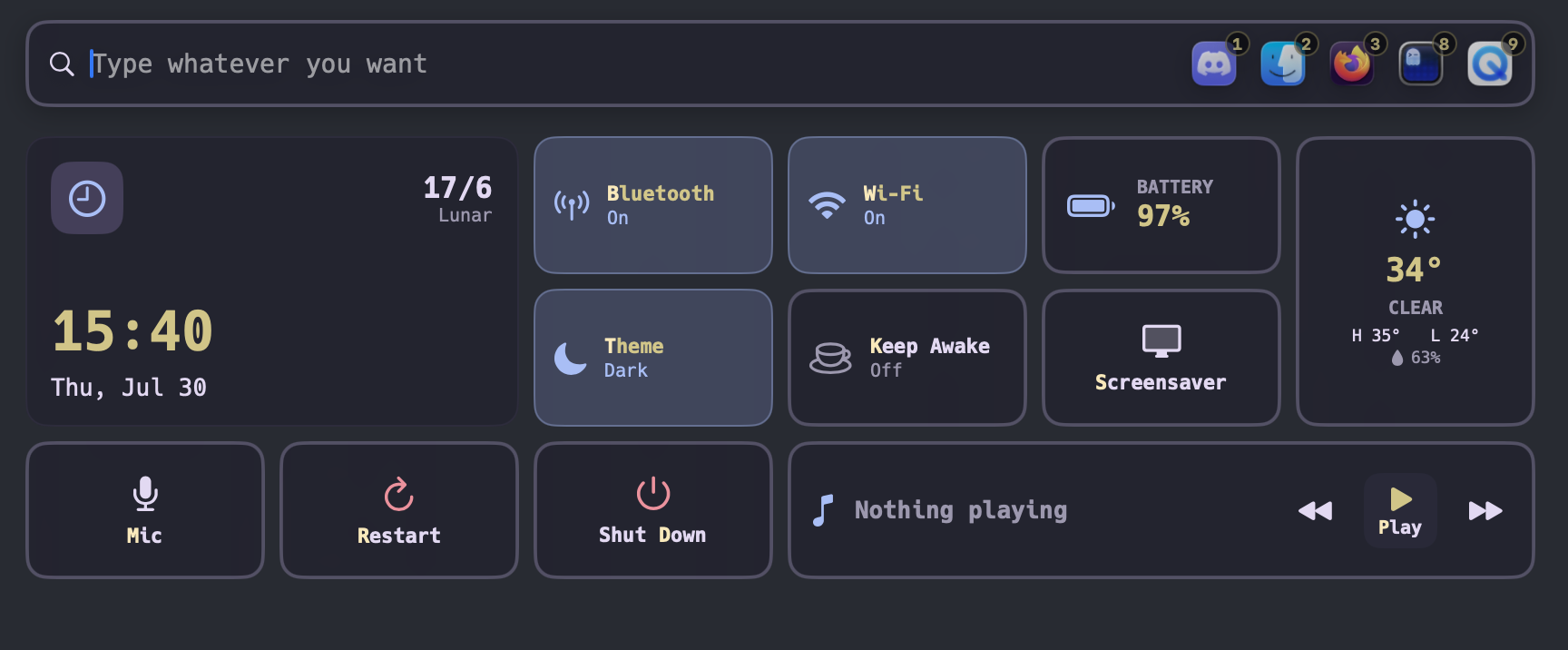
- Tiles come from a shared catalog, so macOS, Windows, and Linux render the same strip; only the native control paths differ. On Linux the strip works across GNOME, KDE, and tiling WMs including i3.
- Tiles: an L slot (active Pomodoro session > remaining todos > clock), Bluetooth, Wi-Fi, Battery, Theme, Keep Awake, Screensaver, Weather, Mic, Restart, Shut Down, and Now Playing.
- Activate a tile by clicking it, or press the platform modifier plus its highlighted letter -
Cmdon macOS,Alton Windows/Linux (e.g.Cmd/Alt+Bfor Bluetooth,Pfor Now Playing play/pause). - Restart and Shut Down arm on the first press and fire on the second;
Escor a timeout cancels. - Battery, Weather, and the L slot are read-only. Battery shows a charging icon while the machine is plugged in, and falls back to system uptime on a desktop with no battery.
- Toggle the whole strip via Settings → Appearance → Super Actions. Persisted as
super_actions_enabledin~/.look/config. - With a background image set, each tile shows the slice of it behind its own area under a frosted overlay, so the bar and the strip read as one picture (macOS).
Which tiles are on the strip, and where, is not a setting. It is a drawing in ~/.look/super-actions.toml.
Arranging the Strip#
Look writes ~/.look/super-actions.toml on first run with the default layout, so the file is its own reference. Open it and the format explains itself.
Ready-made tiles to paste in: lookbook's `tiles/`.
It is a drawing of the screen: each line is a row, each name is one cell.
layout = [
    "lslot       lslot       bluetooth   wifi        battery     weather",
    "lslot       lslot       theme       keepawake   screensaver weather",
    "mic         restart     shutdown    nowplaying  nowplaying  nowplaying",
]
Four edits, one mechanism:
- Hide a tile by deleting its name. Nothing closes up behind it - you get a gap where it was, because you removed it.
- Move one by putting its name somewhere else.
- Resize one by repeating its name across more cells.
weatherabove stands two rows tall because it appears in both. A tile's cells must form a rectangle. - Leave a gap on purpose with
..
The names are the tile ids: lslot, bluetooth, wifi, battery, theme, keepawake, screensaver, weather, mic, restart, shutdown, nowplaying. The seeded file lists them with what each one does.
Three tiles need room to say anything, so they have a floor, in columns x rows: the big left slot 2x2, weather 1x2, nowplaying 2x1. Every other tile fits in one cell. Drawn smaller, a tile would be clipped rather than shrunk, so Look leaves it out and says which one.
There is no row or column count to declare - the drawing is the count. Every row needs the same number of names, up to five rows and six columns.
A letter belongs to its tile, so a tile you take off the strip takes its Cmd/Alt shortcut with it.
Reload with Cmd+Shift+; (macOS) or Ctrl+Shift+; (Linux, Windows) to arrange the strip while looking at it. Delete the file to go back to the default.
If the drawing is wrong, Look says so in the window rather than failing quietly: a problem with one tile drops that tile and keeps the rest, and a problem with the file's structure - a row with the wrong number of names, or TOML it cannot read - falls back to the whole default layout. The strip is never empty and never silent about why.
Tiles of Your Own#
A tile of your own is a name in the drawing plus an entry below it. It is declared whole in this one file and needs no source at all.
layout = [
    "lslot   lslot   disk    weather",
    "lslot   lslot   lock    weather",
]

[tiles.disk]
value   = '''printf '{"value":"%s","caption":"DISK FREE","icon":"internaldrive","lines":["of %s"]}' "$(df -h / | awk 'NR==2 {print $4}')" "$(df -h / | awk 'NR==2 {print $2}')"'''
refresh = "5m"

[tiles.lock]
press    = "pmset displaysleepnow"
title    = "Lock"
confirm  = "Lock the screen?"
icon     = "lock.fill"
mnemonic = "L"
`value` prints one JSON object. Only value is required, so a shell one-liner is a whole tile:
{"value": "84Gi"}A tile drawn bigger than one cell can say as much as Weather does:
{"value": "84Gi", "caption": "DISK FREE", "lines": ["of 460Gi"], "icon": "internaldrive", "state": "off"}Printing nothing hides the tile - that is how a "next meeting" tile disappears on a day with no meetings.
`press` is what a click or the tile's key runs. A tile with press and no value is a button: it shows its name and runs nothing until you press it. A tile with value and no press is a readout. confirm arms the tile on the first press and fires on the second, the way Restart and Shut Down do. mnemonic asks for a letter: it fires with Cmd on macOS and Alt elsewhere, a letter already taken by a tile on the screen is not given away, and a tile that misses out still works by click.
`icon` names the symbol drawn on the tile. On macOS it is an SF Symbol (lock.fill, internaldrive, calendar). On Linux it is either one of the strip's own glyphs - bluetooth, wifi, theme, keepawake, battery, screensaver, mic, restart, shutdown - or a path to an image of your own (icon = "~/.look/icons/nixos.svg", up to 256 KB, drawn as a mask so it takes the tile's colour). Windows draws from the built-in names only. An unrecognised name draws nothing rather than a placeholder. An icon in the printed JSON beats the one in the file, since that one can change with what was read.
Keep the command light. value runs unattended, so it is capped at two seconds and 16 KB of output; past that it is killed along with anything it started. Within a tile's refresh window nothing runs at all, so most opens cost nothing. Anything that needs to fetch, build, or wait belongs behind press, or in a script that caches to a file the tile just reads. A tile that fails says so and keeps its last good reading - one broken tile never blanks the strip.
The full reference in the repo covers every key.
Command Mode#
Two ways in:
Cmd/Ctrl+/enters command mode and resumes the last command panel you visited (defaults tocalcon first run); useTaborCmd+1..Cmd+7to switch.- From the home screen, type
:followed by a known command id::calc 2+2- the space after the command id is the live trigger; you switch with2+2already typed and can keep typing without pressing Enter.:calcthenEnter- switch with empty input.- The
:shortcut only triggers when the word right after it is an exact known command id (calc,pomo,todo,speed,kill,shell,sys); anything else (:foo,:Users/me/...) stays in normal search. :kill chromeand:shell ...switch into command mode but never auto-execute - the existing kill confirmation and shell input gate still apply.
Built-in quick commands:
| Command | Description |
|---|---|
calc | Calculator |
pomo | Pomodoro focus timer |
todo | Daily tasks & progress |
speed | Internet speed test |
kill | Force quit app or port owner |
shell | Execute shell commands |
sys | System information |
Jump keys are in Keyboard Shortcuts.
calc#
The full grammar from Inline Calculator, in a dedicated panel.
Inside /calc the aliases x, : and a leading v are honored wherever they land, as multiply, divide, and sqrt:
1920x1080→2,073,60016:9→1.7777777778v 16→4(thevalias needs a separator or parentheses:v(16)also works)
Those same strings stay ordinary searches in the main input, where shape gating leaves resolutions and ratios alone.
pomo#
A pomodoro focus timer that lives inside command mode.
- Editable session list - plan a sequence of focus + break blocks, each with its own duration and name (e.g. Deep Work 30m → Short Break 5m → Review 30m → Long Break 15m). The timer auto-advances through the list and loops the music folder while a session runs.
- Three timer styles (switchable via the gear icon): Modern Ring, Vintage Dial, Minimal Text.
- Background music: pick any folder of audio files (
mp3,m4a,wav,aac,flac,ogg,aiff,alac). Tracks are streamed one at a time (no full-folder load), shuffled per launch, and looped at the end of the list. - Standby fade - after 5s of no input the panel collapses to clock-only (the sidebar hides too); any key/mouse input restores it.
- "Ending soon" alert - at 10s remaining, a chime + a popover from the menu-bar timer (and a system notification, if granted) fires once per session.
- Menu-bar mini-timer - visible whenever a session is active, even when the launcher window is hidden. Click it to jump straight back into
/pomo. - Keyboard:
Spacestart/pause •Rreset •Ptoggle music play/pause. - Persistence: the session list, selected timer style, and music folder path are saved to
~/.look/configand survive restarts.
todo#
A daily task tracker (:todo or Cmd/Ctrl+3).
- Day-grouped tasks - tasks live under their date; overdue days get a badge, and a done-today stat sits in the footer.
- Stats page - streak counter, 30-day trend chart, and a year heatmap of completed tasks.
- Keyboard:
Ctrl+Nadds a task,Ctrl+Ssaves,Enter/Escapeconfirm or cancel an edit. Double-click a task to edit it. - Undo/redo:
Cmd/Ctrl+Zwalks back through task changes, deleting one task or clearing a day included, andCmd/Ctrl+Shift+Zreplays them. The last 50 changes are kept whether saved or not, so undoing past a Save marks the panel unsaved again and a second Save writes the reverted list. A new edit clears the redo stack; text fields keep their own typing undo. - Home-screen quick view - when today has tasks, the hint bar shows a clickable Todo done/total stat with an "Unfinished today" hover bubble.
- Shared storage - tasks persist in the local
look.dband are shared between the macOS and Windows/Linux apps.
speed#
Measures the connection on a live dial: download and upload orbit as counter-rotating comets on a log scale (1 Mbps to 1 Gbps), and latency sits at the centre, pulsing once per round trip.
- The test starts when the panel opens, unless the last reading is under a minute old.
Rruns a fresh one. A run takes about 15 seconds and saturates the link while it does, so expect other downloads to slow briefly. - Under the numbers sits a plain-language read of the result, e.g.
FAST BROADBAND/LATENCY EXCELLENT. LANis this machine's address,WANis what the far end sees. WAN is masked until you pressE. Clicking either address copies it, and WAN copies in full even while masked.- The footer names your ISP, rough location, and which server answered.
via Cloudflareis the primary; a fallback mirror reads conservatively low. - Latency is one TCP handshake against an already-resolved address, so it sits a little above what
pingreports.
shell#
Run a shell command from the launcher. Input containing sudo shows an orange warning cue.
kill#
Force-kill a running app or process with explicit confirmation. Supports port-based targeting:
kill :3000- kills whatever owns port 3000kill port 3000- same, verbose form- Use
Up/Downto navigate process results,Y/Nto confirm or cancel
sys#
Displays system information at a glance.
Declared Sources#
Look indexes apps, files, and System Settings out of the box. Sources are how you add your own rows: your repos, your SSH hosts, your morning routine, your deploy script.
You declare them in a small TOML file. They show up in the same list as everything else, rank by how often you use them, and act like every other row.
Needs Look v0.6.12 or newer. Earlier builds do not read
~/.look/sources/.
Want something working straight away? lookbook is a collection of ready-made sources for git, tmux, ssh, docker and more. Copy one in, reload, done.
Quick start#
- Make the directory:
mkdir -p ~/.look/sources- Put a file in it. Any name ending in
.toml, and as many files as you like:
# ~/.look/sources/mine.toml

[projects]
name = "Projects"
dir  = "~/dev"
only = "dirs"

[work]
name = "Work setup"
do = [
  "open -a Slack",
  "open -a Safari https://github.com",
]- Reload:
Cmd+Shift+;(macOS) orCtrl+Shift+;(Linux, Windows).
Type projects and your repos are there. Type work setup and one Enter opens both apps.
Look reads every .toml in the directory and merges them, so you can split by topic (work.toml, git.toml) and delete one when you are done with it. Block ids must be unique across all of them.
The four kinds of block#
Every [header] in a file is one block, and every block needs exactly one producer key. That key is what says what the block is.
| Producer | What it makes | Use it for |
|---|---|---|
do | one row, and Enter performs its steps | routines, bundles, a command you run often |
dir | one row per child of a directory | projects, notes, screenshots |
file | one row per line of a text file | a list you maintain by hand |
run | one row per line a command prints | anything that changes: branches, containers |
do#
[work]
name = "Work setup"
icon = "🚀"
do = [
  "open -a Slack",
  "open -a Ghostty",
]
One row. Enter runs every step in order, and a step that fails does not stop the rest.
dir#
[projects]
name  = "Projects"
dir   = "~/dev"          # or: dirs = ["~/dev", "~/work"]
depth = 1                # 1 = immediate children
only  = "dirs"           # dirs | files | all
The rows are real files and folders, so preview, reveal, copy and the file shortcuts all keep working on them. Hidden entries are always skipped. match and exclude take globs, tested against the entry name.
file#
[hosts]
name = "SSH hosts"
file = "~/.look/hosts.txt"
open = "ssh {id}"
One row per line. See Row formats.
run#
[branches]
name = "Git branches"
run  = "git -C ~/dev/look branch --format='%(refname:short)'"
open = "git -C ~/dev/look switch {id}"
The command runs on reload, not on every keystroke, and its rows are cached until the next reload. Search stays instant no matter how slow the command is.
If it fails, times out, or prints nothing, the rows from last time are kept. Losing them would also lose the ranking those rows had earned.
A script with no TOML at all#
Drop an executable straight into ~/.look/sources/ and Look treats it as a run block whose id and name are the file name. The fastest way to try an idea. On Windows the extension decides: .exe, .cmd, .bat, .com and .ps1.
Key reference#
Every block can carry these:
| Key | Type | Default | What it does |
|---|---|---|---|
name | string | the block id | What you type to find the rows |
aliases | list | none | Extra words that also find them |
bias | integer | 0 | Score offset. Negative sits below apps and files |
icon | string | none | Emoji, SF Symbol name, or an image path |
enabled | bool | true | false keeps the file, stops loading the block |
preview | string | none | Command run for the selected row; output fills the right panel |
confirm | string | none | Yes/no question asked before the block acts |
then | list | none | Other blocks a picked row can reach |
open edit terminal reveal | string | none | See What Enter does |
Producer-specific:
| Key | Belongs to | Notes |
|---|---|---|
applies | do | Rows this action joins even though it did not produce them. See Actions on any row |
dir / dirs | dir | One root, or several. They combine |
depth | dir | Default 1 |
only | dir | dirs, files or all |
match / exclude | dir | Globs against the entry name |
cwd | run | Working directory. Default: the filesystem root |
timeout | run | 30s, 5m, 1h. Default 5s, capped at 30s |
format | file, run | lines or json |
A leading ~ in any path key is your home directory.
Placeholders#
Every command a block declares expands against the selected row:
| Placeholder | Expands to |
|---|---|
{id} | The row's id |
{title} | What the row displays |
{path} | Its filesystem path, when it has one |
{dir} | The row itself when it is a folder, its parent when it is a file |
{query} | What you had typed when you picked it |
{parent.id} {parent.title} {parent.path} | The same, for the row above. Repeat parent. to go further out |
Two rules worth internalising:
- Never quote a placeholder yourself. Every value is shell-escaped on substitution, so
open {path}handles a folder calledMy Projectand a row titled; rm -rf ~is inert. Writingopen "{path}"gives you a doubly quoted path that resolves to nothing. - A block whose producer mentions a placeholder is not a top-level row.
do = ["make -C {path} deploy"]only means something against a selected project, so Look keeps it out of the main list and reaches it only through another block'sthen.
Steps also see LOOK_ID, LOOK_TITLE and LOOK_PATH in their environment, for a script that would rather read a variable than take an argument.
Actions on a row#
What Enter does#
Four verbs have one shortcut each across the whole app:
| Verb | Key | Meaning |
|---|---|---|
open | Enter | The main action |
edit | Cmd/Ctrl+E | Open in your editor |
terminal | Cmd/Ctrl+T | Open a terminal there |
reveal | Cmd/Ctrl+F | Show in Finder / Explorer / Files |
Declare only what differs from your global preferred tools. The rule for Enter: the block's open if it declares one, otherwise the row's path is opened the way any file in Look is opened. That is why most dir blocks declare no verbs at all.
A do block cannot declare verbs. It already is the action.
Drill-downs and actions#
then lists other blocks a picked row can reach. Press Cmd/Ctrl+K on a row to open the action menu, Cmd+J / Cmd+K or the arrows to move, Enter to run, Esc to close.
The target's own producer decides what happens:
- a target that performs steps (
do) is an action on the selected row; - a target that produces rows is a drill-down: you descend into its rows, and
Esccomes back.
[projects]
dir  = "~/dev"
only = "dirs"
then = ["branches"]

[branches]
name = "Branches"
run  = "git -C {path} branch --format='%(refname:short)'"
open = "git -C {parent.path} switch {id}"
Look at [branches] twice, because this is the one thing that trips people up. run is the producer: it is asked for rows while the project is still the selected row, so the project is {path}. open acts on a branch row that run produced, whose parent is the project, so there the project is {parent.path}.
Levels stack five deep. A then target may live in another file.
Actions on any row#
then gives a verb to the rows of one block. applies gives one to rows anything produced, the files and folders Look already indexes included:
[optimize]
name    = "Optimize"
applies = { ext = ["png"] }
do      = ["oxipng -o4 {path}"]
Select any .png anywhere, press Cmd/Ctrl+K, and Optimize is there. No block listing the images, no folder to keep them in.
Only a do block can declare it. A block that produces rows is a list, and a list is not a verb.
| Written as | Matches |
|---|---|
applies = "files" | Any row whose path is not a directory |
applies = "dirs" | Any row whose path is a directory |
applies = "paths" | Any row with a path, apps included |
applies = "apps" | App rows |
applies = { ext = ["png"] } | That extension, any case, written without the dot. Files only |
applies = { match = ["*.tar.gz"] } | A glob on the file name, not the whole path |
applies = { only = "dirs", match = ["*.xcodeproj"] } | Both at once |
A row with nothing on disk (a settings pane) matches nothing, since {path} would be empty.
These land after the standard verbs, never in place of them: Cmd/Ctrl+E still edits and Cmd/Ctrl+F still reveals. A row from a block that declares then shows that block's own targets first, and these after.
Keep them narrow. Every applies = "paths" block puts one more entry on every row in the launcher, forever. Ten per row is the ceiling; past that the rest are dropped, highest bias first, and the overflow is reported.
Asking before acting#
[drop-branch]
name    = "Delete local branch"
confirm = "Delete local branch {id}?"
do      = ["git -C ~/dev/look branch -d {id}"]
The question is expanded against the row, so it names what is about to happen. Anything destructive should have one. A launcher makes Enter on the wrong row very cheap, and this is the one line that makes it expensive again.
Row formats#
`lines` (the default) is one row per line, tab separated: id, then title, then subtitle. A bare line with no tabs is a row whose id and title are the same text. The id is what actions receive and what usage is recorded against, so a row can show one thing and act on another.
`json` carries the two fields tabs cannot: path, which makes a row a real filesystem object, and a per-row icon.
[{"id": "look", "title": "Look", "subtitle": "3 uncommitted", "path": "~/dev/look"}]| Field | Required | Notes |
|---|---|---|
id | yes | What actions receive |
title | no | Defaults to the id |
subtitle | no | Defaults to the block name |
path | no | Makes the row a filesystem object |
icon | no | Emoji, SF Symbol name, or image path. Beats the block's icon |
One top-level array, one object per line, or pretty-printed objects run together: whichever your tool already prints.
Your shell#
Every command a block declares is shell text, run by your login shell, so &&, |, > and your PATH all work. That matters more than it sounds: a launcher is started by the window server, not a terminal, so without the login shell it would inherit an environment with no Homebrew, no nvm and no $EDITOR.
A login, non-interactive shell reads ~/.zshenv, ~/.zprofile and ~/.zlogin, but not ~/.zshrc, and for bash the profile chain but not ~/.bashrc unless your profile sources it. If a PATH entry or a shell function lives in your rc file and a block cannot find it, that is why. Move the export to ~/.zprofile, or name the binary by full path.
If your shell is fish or nushell, commands fall back to /bin/sh, because those shells accept the flags and then reject the script. Write POSIX shell, or call fish -c '...' explicitly.
Refresh and limits#
Reload with Cmd+Shift+; (macOS) or Ctrl+Shift+; (Linux, Windows). It re-reads every file, re-runs every enabled run block, and re-indexes. Editing a block and reloading is the whole development loop.
Removing a block, or a row, removes its record and its ranking history at the next reload. Renaming a block id therefore counts as a delete plus an add.
| Limit | Value |
|---|---|
| Rows per block | 2,000 |
| Default command timeout | 5s, up to 30s |
| Whole reload spent running commands | 60s |
| Drill-down depth | 5 levels |
When something does not work#
- The block does not appear. Check it declares exactly one of
do,dir,file,run. Zero or two is an error. Check its producer does not mention a placeholder, which makes it athentarget by design. - A `run` block shows nothing or stale rows. Run the command in a terminal first. A failing command keeps the previous rows on purpose.
- A command works in your terminal but not in Look. Usually the login shell not reading your rc file, an alias rather than a function, or a placeholder you quoted yourself.
Problems are printed to stderr, one line each, prefixed look sources:. Launch Look from a terminal to read them.
Going further#
- lookbook collects ready-made sources, one folder per tool, each with its own README.
- The full format reference in the repo covers every key, every limit, and a longer troubleshooting list.
core/sources/example.tomlis the whole format in one annotated file, kept honest by a test.
AI#
macOS only, and still beta. Look's conversational mode runs on a model you choose and point at yourself. Everything here is separate from the cross-platform answer card and web suggestions, which need no model and are documented under Web Answers.
Linux and Windows have no on-device model and no > session yet. The ai_enabled key is shared across platforms, so on those two it gates web answers only.
Setup#
Pick a provider in Settings → Advanced → AI:
| Provider | What it does |
|---|---|
Apple Intelligence (on-device) | Answers questions. Too small to plan actions, so calendar and reminder phrasings won't work through it |
Ollama (local) | The full feature set. Needs a pulled model |
Ollama defaults to http://localhost:11434 with model qwen3.5:4b. Both are editable in the same panel, or in ~/.look/config:
| Key | Default | Meaning |
|---|---|---|
ai_enabled | true | Master switch. false turns off the AI mode, the answer card, and web suggestions |
ollama_host | http://localhost:11434 | Where inference runs. A non-loopback address sends prompts over the network |
ollama_model | qwen3.5:4b | Model tag to use |
ai_allow_remote_context | false | Whether your calendar, clipboard, and remembered facts may be attached to prompts when inference is not on this machine |
Calendar, Reminders, and Contacts access is granted from the Permissions row in the same panel. Look reads those through the OS, never over a network.
The `>` Session#
Type > to turn the panel into a conversation. Actions, questions, and streamed answers stack together in one thread.
| Shortcut | Action |
|---|---|
Escape | Leave the session |
Cmd+Z | Undo the last action |
Cmd+. | Stop the current generation without ending the session |
Shift+Enter | New line instead of sending. The box grows to six lines and stops |
Option+Up / Option+Down | Walk your recent prompts, like a shell history |
Shift+Up / Shift+Down | Select text in the message instead |
Cmd+1..Cmd+9, Cmd+0 | Open the conversation carrying that chip (Cmd+0 is the tenth) |
Cmd+D / Cmd+Delete | Delete the highlighted conversation. Undo from the banner with Cmd+Z |
Cmd+H | Open the help screen on its AI topic without leaving the conversation |
Conversations persist, and they are listed, searchable, and resumable. The chip list stops at ten because a Cmd chord is a single keypress; older conversations are found by typing, then Tab/arrows and Enter.
The running-apps row is hidden on the AI screen, which is what frees the digits for conversations.
Calendar and Reminders#
Add, move, cancel, complete, remove, snooze, and block focus time in plain language:
>move my dentist to friday>remind me to renew the domain next tuesday>block two hours for deep work tomorrow morning
Every change previews first and commits on Enter, then Cmd+Z undoes it. Nothing is written to your calendar without that confirmation. Adding an event that already sits on that day says so rather than quietly duplicating it. Multi-step requests become an ordered plan that runs in sequence.
`@` for exact times#
>add lunch @ 1pm skips the model entirely. It is instant, deterministic, and works with no capable model configured at all, which makes it the reliable path when you already know the time.
Join a Meeting#
join, join meeting, join my next meeting, or join <name>.
Pins the next Teams, Zoom, Google Meet, Webex, Jitsi, GoToMeeting, or Whereby meeting on your calendar; Enter opens the link. Works in > and in the main bar.
- Name one to skip past a sooner meeting:
join standup,join design review - A name matching nothing shows no row, which is what keeps
join two pdfsan ordinary file search - Looks two days ahead, so a meeting tomorrow reads "tomorrow 14:30" rather than counting minutes
- A meeting already under way beats one starting sooner
- Deterministic and model-free: the invite already carries its join link, so Look reads it out of the event rather than calling any API
Online accounts work through macOS Calendar (System Settings → Internet Accounts).
Call and Message#
call mom, facetime sarah, message alex, call mom on iphone.
Matches the name against Contacts and opens FaceTime or Messages by URL scheme, with no API and no network. Look always lists what it found before anything rings, so a wrong pick never calls the wrong person: the row you read is the confirmation. A bare call means FaceTime audio, the one that works with no iPhone nearby.
Works in > and in the main bar, where each way to reach someone is its own row.
File Recall#
Ask for files by description instead of name: pdfs from last week, files added to desktop. Look searches your index by type, time, and place.
Results say when they were interpreted, or when the search had to be relaxed to find near-misses. The model produces a structured query, never a rewritten query string, and never overrides results already on screen.
Text Operations#
summarize, translate to german, make this shorter transform whatever you copied. To work on a file instead:
- Pick it first with
Cmd+P, or @-mention it while typing, which opens a two-column picker with previews
Text files, source code, and PDFs are supported. An oversized file reports how much of it was read rather than quietly summarizing only the first part. A PDF that is a scan, is password-protected, or decodes to junk is refused by name, because summarizing garbage would read exactly like a real answer.
Remembered Facts#
remember I prefer metric stores a durable fact the assistant sees on every turn. Only you can write these; the model never can.
No Prefix Needed#
Typing an instruction in the main bar works too, without >. The plan appears as the first result row and one Enter runs it.
Clipboard History#
Clipboard history lives in the database, so it is searchable and available to the AI as context. Browse it with the c" prefix; Cmd+D or Delete removes the selected entry.
Privacy#
Prompts go to whichever provider you select. Apple Intelligence is on-device and Ollama defaults to localhost, so by default no prompt leaves your machine.
Two things change that:
- Setting
ollama_hostto a non-loopback address - Selecting a cloud-routed Ollama model (a
-cloudtag, which the local daemon proxies to Ollama's service)
Your calendar, clipboard, and remembered facts are held to a stricter rule than the prompt itself. They are attached only when inference is on this machine. For anything remote they are withheld until you turn on ai_allow_remote_context.
Set ai_enabled = false to turn all of it off, including the answer card and web suggestions. Local search and indexing never make network calls either way.
Keyboard Shortcuts#
On Windows/Linux, read Cmd as Ctrl throughout, except the launcher toggle.
Every modifier chord on this page is a default. Rebind it in Settings → Shortcuts on macOS, Windows and Linux: click the key capsule, press the new chord, then Save Config. Only what you changed is written, as shortcut_<group>_<action> in ~/.look/config with the same key names on every platform, so a config file carries your keys between machines. The keys that structure navigation (Enter, Tab, Escape, the arrows, the Y/N confirmations) stay fixed. Grammar and examples under Shortcuts.
Global#
| Action | macOS | Windows / Linux |
|---|---|---|
| Toggle launcher | Cmd+Space | Alt+Space |
| Open/close settings | Cmd+Shift+, | Ctrl+Shift+, |
| Reload config, sources and the Super Actions layout | Cmd+Shift+; | Ctrl+Shift+; |
| Flip between Split and Compact for this session | Cmd+Shift+C | Ctrl+Shift+C |
| Quit Look | Cmd+Option+Q | Alt+Shift+Q |
The launcher toggle is rebindable: record a new one in Settings → Shortcuts (macOS and Windows), or set launcher_hotkey in ~/.look/config - see Configuration. On Linux the only accepted value is none, which frees the key so you can bind lookapp --toggle in your desktop's own shortcuts.
Navigation#
| Shortcut | Action |
|---|---|
Tab / Shift+Tab | Next / previous result |
↑ / ↓ | Move selection |
Enter | Open selected result |
Escape | Go back / close (context dependent) |
Cmd+H | Toggle help/shortcuts screen |
Cmd+Q | Hide launcher (macOS) |
On the Selected Result#
| Shortcut | Action |
|---|---|
Cmd+K | Open the action menu for the row |
Cmd+E | Edit: text_editor on a file, code_editor on a folder |
Cmd+T | Open a terminal at the row's directory |
Cmd+F | Reveal in file manager |
Cmd+C | Copy file/folder |
Cmd+P | Toggle pick (multi-select) |
Cmd+Shift+P | Clear all picked items |
Shift+Enter | Open all picked items |
Cmd+D | Move to trash; empties the Trash on the Trash quick-folder |
Cmd+Shift+H | Hide the app from Look |
Ctrl+Shift+Enter | Run as administrator (Windows) |
Cmd+I | Paste the selected clip into the app you came from, in c" and ci" mode |
Delete | Remove the entry, in c" and ci" mode (Cmd+D does the same) |
See Result Actions for what each one does, and Preferred Tools for the editor, terminal and file manager Cmd+E / Cmd+T / Cmd+F use.
Entering Modes#
| Shortcut | Action |
|---|---|
Cmd+Enter | Web search the current query |
Cmd+/ | Command mode (resumes the last panel; calc on first run) |
:cmd | Jump straight to a command, e.g. :calc 2+2, :todo, :kill chrome |
" | Browse query prefixes |
lookapp <mode> | Open straight into a mode from a keybinding - see Launch Modes |
> | AI conversation (macOS) |
Command Mode#
Cmd+1..Cmd+7 switch panels only while command mode is open. On the home screen those keys drive the running-apps switcher instead.
| Shortcut | Panel |
|---|---|
Cmd+1 | calc |
Cmd+2 | pomo |
Cmd+3 | todo |
Cmd+4 | speed |
Cmd+5 | kill |
Cmd+6 | shell |
Cmd+7 | sys |
Within a panel:
| Shortcut | Action |
|---|---|
Y / N | Confirm / cancel a kill prompt |
Space / R / P | In pomo: start-pause • reset • music play-pause |
Ctrl+N / Ctrl+S | In todo: new task • save |
Cmd+Z / Cmd+Shift+Z | In todo: undo • redo a task change |
R / E | In speed: run again • reveal the public address |
Running Apps Switcher#
On the home screen, the platform modifier plus an icon's badge digit activates that app: Cmd+1..Cmd+9 on macOS, Alt+1..Alt+9 on Linux/Windows. Badges are assigned ergonomically rather than sequentially - see Running Apps Switcher.
Super Actions#
On the empty home screen, the platform modifier plus a tile's highlighted letter fires it: Cmd on macOS, Alt on Linux/Windows.
| Key | Tile |
|---|---|
B / W | Bluetooth • Wi-Fi |
T / K / S | Theme • Keep Awake • Screensaver |
M / P | Mic mute • Now Playing play-pause |
R / D | Restart • Shut Down (both arm first, fire on the second press) |
A letter belongs to its tile, so one you have taken off the strip does nothing, and a tile of your own claims the letter its mnemonic asks for. See Arranging the Strip.
AI Mode (`>`, macOS)#
The > session rebinds several keys, including the digits, which open conversations there instead of running apps. Full table on the AI page.
Settings Panel Zoom#
| Shortcut | Action |
|---|---|
Cmd+- / Cmd+= | Zoom out / in (temporary) |
Cmd+0 | Reset zoom |
Launch Modes (CLI)#
Look can open straight into a mode instead of the empty home screen. Bind one of these to a key in your desktop or window manager and that key becomes "open my clipboard history", not just "open Look".
lookapp clipboard          # opens with c" already in the field
lookapp todo               # opens the todo panel
lookapp calc 2+2           # opens /calc with 2+2 typed
lookapp files report       # files-only search for "report"
The mode name comes first and everything after it is the search term, verbatim. That matters for shell: lookapp shell ls -la keeps its -la instead of trying to read it as an option.
Modes#
Names are case-insensitive, and most carry shorter aliases.
| Mode | Aliases | Opens | Where |
|---|---|---|---|
clipboard | clip, cb | c" clipboard history | all |
clipboard-image | clipimg, ci | ci" copied images | all |
apps | app | a" applications only | all |
files | file | f" files only | all |
folders | folder, dirs | d" folders only | all |
recent | rc" recent files and folders | all | |
regex | re | r" regex search | all |
processes | ps | ps" find and kill running processes | all |
translate | tr | t" quick translation | all |
dictionary | dict | tw" dictionary lookup | macOS |
calc | calculator | the calculator panel | all |
pomo | pomodoro | the pomodoro timer | all |
todo | daily tasks | all | |
speed | the network speed test | all | |
kill | running processes | all | |
shell | the shell command panel | all | |
sys | system info | all | |
ai | chat, ask | the > AI session | macOS |
lookapp --list-modes prints this table as the build you are running sees it, so a mode that is macOS-only says so rather than disappearing.
Flags#
| Flag | Effect |
|---|---|
--toggle | Show or hide the running launcher. What you bind when launcher_hotkey=none |
--mode <name> [term] | The long form of a bare mode name |
--query <text> | Open with exactly this text in the field, no mode |
--list-modes | Print the modes and exit |
reload-config | Re-read ~/.look/config in the running Look and exit, without opening a window |
-- | End the options, for a term that starts with a hyphen |
reload-config is for scripts that rewrite the config, a theme that follows the wallpaper being the usual one. If Look is not running it does nothing and exits 0.
When a name is wrong#
- A misspelled mode (
lookapp clipbrd) is an error: you were specific and missed, so Look says so and prints the list. - A mode this platform does not have (
lookapp aion Linux) says that, rather than opening a search for>. - Any other unrecognised argument just opens Look normally, which is what keeps old autostart lines working.
--modewith no name prints the list instead of erroring, since a keybinding has no terminal to complain to.
Settings Panel#
Settings Panel#
Open with Cmd/Ctrl+Shift+,. Contains three tabs:
Appearance#
- Theme: 8 built-in presets (Catppuccin, Tokyo Night, Rose Pine, Gruvbox, Dracula, Kanagawa, Kindle, Liquid) plus Custom. Kanagawa is the default on Windows and Linux. Kindle is the one light preset: warm paper, near-black ink. Liquid renders on macOS 26's Liquid Glass, and ships as clear glass elsewhere: near-transparent fills, wider corners, a bright rim along the top edge.
- Tint Color, Blur, Font, Font Color, Border - colors and type. Behind-window blur is the compositor's to grant: Look asks for it on KDE, Hyprland 0.56+ and Niri, and Blur Opacity thins the tint wherever there is frost - real blur, or a background image - to let more of it through.
- Window -
SplitorCompact, see Window Layout - Inner Gap - see Floating Layout
- Running Apps and Super Actions - show or hide the two Home Screen strips
- Animations - the launcher's motion: the arrival, the entrance staggers, the selection glide. Off shows every change instantly; see `animations_enabled`
Advanced#
- Background image (path, layout mode, opacity, blur) - keys in Configuration
- Indexing settings (File Scan Depth 1-12, File Scan Limit 500-50000)
- AI / Web answers on/off, provider choice, Ollama host and model, and Calendar/Reminders/Contacts permissions - see AI
- Backend log level
- Launch at login
- Config reset:
Create Fresh Configbutton with confirmation popup
Shortcuts#
- Every chord Look answers to, listed by topic (Main, View, Todo, and so on), with a search box to find one by name or key
- Rebind any of them: click the key capsule, press the combination you want, then Save Config.
Resetbeside a row puts its default back,Reset allrestores the whole table, and two live chords that collide are flagged rather than refused. Saved asshortcut_<group>_<action>in~/.look/config, see Shortcuts - Launcher toggle records here too on macOS and Windows; a combination another app already owns is refused with the reason. Linux keeps the default and takes
launcher_hotkey=nonefrom the config file instead - The structural keys (
Enter,Tab,Escape, the arrows,Y/N) are listed but fixed - Toggle the help screen with
Cmd/Ctrl+H
Floating Layout (Inner Gap)#
Split the launcher into floating tiles, tiling-WM style, with the Inner Gap slider in Settings → Appearance (0-24 px, default 7):
- 0 keeps the classic single framed panel.
- Above 0, the search bar, results list, and preview panel become separate frosted tiles separated by transparent gaps, floating directly on the desktop.
- Each tile keeps the theme border, so the Border thickness/color settings apply per tile.
- With an empty query, only the search bar shows (resting state) - the columns appear as you type.
- A background image continues seamlessly across the tiles, as if the gaps were cut out of one picture.
Persisted as inner_gap in ~/.look/config and shared between the macOS and Windows/Linux apps.
On environments that can't composite the floating look faithfully (bare X11 WMs without a compositor, VMs with software rendering, blur-disabled stacks), Look keeps the classic framed panel with both columns visible and disables the Inner Gap slider. The saved value is untouched and applies again on a capable setup.
Lazy Indexing#
On by default. Look reindexes only when file or app changes are detected, when you reload with Cmd/Ctrl+Shift+;, or on restart. Turn lazy_indexing_enabled off to reindex on every launch: fresher, slower.
Configuration#
Look uses a configuration file at ~/.look/config. Changes take effect immediately after saving, or you can press Cmd/Ctrl+Shift+; to reload.
That file holds settings. To add your own rows to Look, from a folder, a list, or a command, see Declared Sources.
Configuration File Location#
- Default:
~/.look/config - Custom: Set
LOOK_CONFIG_PATHenvironment variable - Reload:
Cmd/Ctrl+Shift+; - Reset: Settings → Advanced → "Create Fresh Config"
Format#
- One
key=valueper line #starts a comment- Unknown keys ignored
- Invalid values fall back to defaults
Backend Settings#
App Scanning#
app_scan_roots=/Applications,/System/Applications,/System/Applications/Utilities,/System/Library/CoreServices/Applications
app_scan_depth=3
app_exclude_paths=
app_exclude_names=
File Scanning#
file_scan_roots=Desktop,Documents,Downloads,Pictures,Videos
file_scan_extra_roots=
file_scan_depth=4
file_scan_limit=8000
file_exclude_paths=
Use file_scan_extra_roots to add user-specific directories on top of the defaults (overlap and risky-root validation is enforced).
Other Backend Options#
lazy_indexing_enabled=true
skip_dir_names=node_modules,target,build,dist,.git,vendor,out,coverage,tmp,cache,venv
backend_log_level=info
launch_at_login=false
Backend Keys Reference#
| Key | Description | Default |
|---|---|---|
app_scan_roots | Directories to scan for apps | (see above) |
app_scan_depth | Max depth for app scanning | 3 |
file_scan_roots | Directories to scan for files | Desktop,Documents,Downloads,Pictures,Videos |
file_scan_extra_roots | Extra user-specific directories to index | (empty) |
file_scan_depth | Max depth for file scanning (1-12) | 4 |
file_scan_limit | Max files to index (500-50000) | 8000 |
lazy_indexing_enabled | Enable lazy indexing | true |
skip_dir_names | Directories to skip | (see above) |
backend_log_level | Log verbosity | info |
launch_at_login | Start at login | false |
Preferred Tools#
Name the editor, terminal, and file manager Look should hand a row to. Four optional keys:
text_editor=nvim
code_editor=zed
terminal=ghostty
file_manager=nautilus| Key | Used for | Example values |
|---|---|---|
text_editor | Editing one file (Cmd/Ctrl+E on a file row) | nvim, hx, micro, vim, zed |
code_editor | Opening a project folder (Cmd/Ctrl+E on a folder row) | zed, code, cursor, xcode |
terminal | Cmd/Ctrl+T, and the host for any terminal editor | ghostty, iterm, kitty, wezterm, gnome-terminal |
file_manager | The Cmd/Ctrl+F reveal target | nautilus, dolphin, thunar, finder |
Declare nothing and nothing changes. An undeclared key means the system default, which is what Look did before these keys existed. They are config-file only - there is no Settings control - so edit ~/.look/config and reload with Cmd/Ctrl+Shift+;.
See Result Actions for what the actions do and where the menu is.
Name the tool, not a command#
A value is a tool name, never a command with its own arguments. Look already knows how to drive each one, including running a terminal editor inside your terminal, which is the whole reason you name a tool instead of writing a command. text_editor=nvim -u NONE is not a name and will not work.
Case, a trailing .app, and a leading directory are all forgiven: Zed, Zed.app and /opt/homebrew/bin/zed all mean zed. Spelling out a full path pins that exact build instead of whatever PATH finds first.
Which key an action uses#
- Edit takes
text_editorfor a file row andcode_editorfor a folder row - a file is a thing to edit, a folder is a project to open. Declaring only one of the two covers both. - Open terminal here on a folder opens that folder; on a file it opens the file's parent, because "here" never means the file.
- An app row gets neither. Both actions are about a place you work in, and the folder holding an app is
/Applications. Reveal still works on an app. - A source block that declares its own
edit/terminal/revealbeats these keys, for that block's rows only. file_manageropens the containing folder. Leave it undeclared if you want the file itself selected on arrival: only the platform's own manager can do that.
Terminal editors#
Naming a terminal editor (nvim, helix, kakoune, micro, nano, …) as text_editor needs terminal declared too. Look then opens the terminal and runs the editor inside it, at the right path - so terminal=ghostty plus text_editor=nvim gives you all three of edit-a-file, edit-a-folder, and terminal-here from two words of config.
A value that cannot work says so instead of doing nothing:
| What you set | What Look tells you |
|---|---|
A terminal editor, no terminal | nvim runs in a terminal; set terminal in your Look config |
A terminal as text_editor | ghostty is a terminal; set text_editor to the editor it should run |
terminal=warp or terminal=hyper | warp cannot be told to run a command |
| Nothing at all | Set text_editor in your Look config |
Warp and Hyper are named because neither offers a way to run a command in a new window. Every other terminal is either known or driven with the -e convention, and one nobody has listed simply works if it honors -e.
Commands run through your login shell, so PATH, Homebrew, nvm and asdf shims resolve the way they do in a real terminal - a launcher started by the window server would otherwise see none of them. Paths are shell-quoted on substitution, so a folder called My Project stays one argument.
Web Answers#
ai_enabled=trueGates all network answer features: the answer card (Wikipedia, DuckDuckGo), currency/weather/crypto converters, and web search suggestions. Set to false to run fully offline. On macOS the same key also gates the on-device Apple Intelligence fallback; there is no on-device model on Linux/Windows, but the key keeps the same name so both apps share config storage.
AI Mode (macOS)#
ollama_host=http://localhost:11434
ollama_model=qwen3.5:4b
ai_allow_remote_context=false
Provider settings for the > conversation mode. ai_enabled above is the master switch for these too.
| Key | Description | Default |
|---|---|---|
ollama_host | Where inference runs. A non-loopback address sends prompts over the network | http://localhost:11434 |
ollama_model | Model tag to use | qwen3.5:4b |
ai_allow_remote_context | Whether calendar, clipboard, and remembered facts may be attached to prompts when inference is not on this machine | false |
Ignored on Linux and Windows, which have no on-device model. Full behavior on the AI page.
UI Theme Settings#
Theme Preset#
ui_theme=catppuccin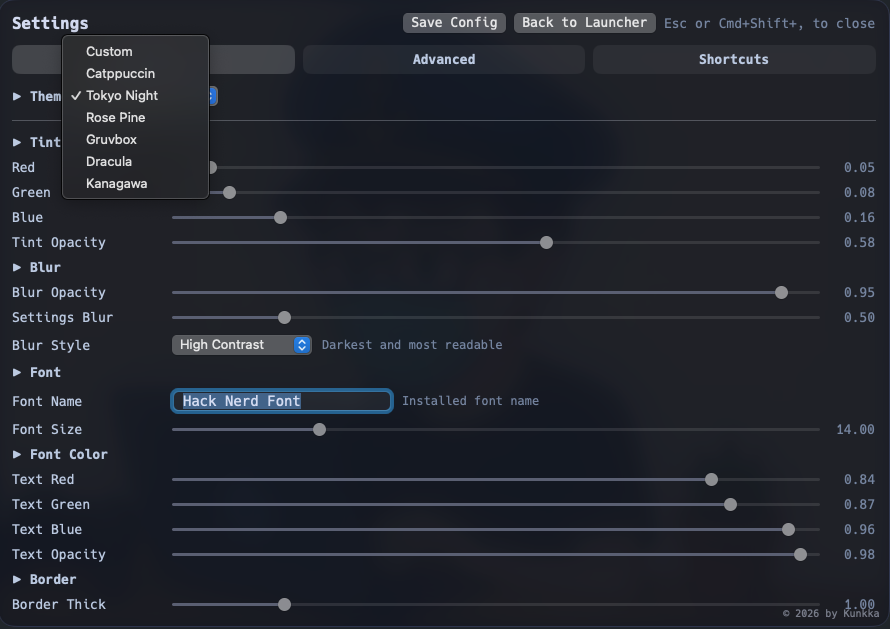
Available: catppuccin, tokyoNight, rosePine, gruvbox, dracula, kanagawa, kindle, liquid, custom
macOS uses camelCase and matches case-insensitively; Windows and Linux hyphenate the two-word names, tokyo-night and rose-pine, and match exactly.
Unset, the key means the individual ui_* values decide the look on macOS, and the default preset (Kanagawa) on Windows and Linux, where those colours are ignored until it reads custom. Moving a colour slider writes custom for you.
On Windows and Linux, ui_surface records how surfaces are drawn rather than what colour they are - empty for the classic panel, liquid for glass. It is stored separately from ui_theme because tweaking any slider rewrites that key to custom, and a customised Liquid keeps its glass.
Appearance#
The block below is what macOS writes on first launch. Windows and Linux keep these defaults in the app and seed none of them, so each key left out takes the shipped value.
ui_tint_red=0.08
ui_tint_green=0.10
ui_tint_blue=0.12
ui_tint_opacity=0.55
ui_blur_material=hudWindow
ui_blur_opacity=0.95
ui_font_name=SF Pro Text
ui_font_size=14
ui_font_red=0.96
ui_font_green=0.96
ui_font_blue=0.98
ui_font_opacity=0.96
ui_border_thickness=1.0
ui_border_red=1.0
ui_border_green=1.0
ui_border_blue=1.0
ui_border_opacity=0.12
Floating Layout#
inner_gap=7
ui_surface_radius=1.5
inner_gap is the home-screen gap, 0-24 in the platform's own unit: points on macOS, pixels on Linux and Windows. 0 keeps the classic framed panel; above 0 the home screen splits into floating tiles separated by this gap, each with its own theme border. Both a fresh config and an absent key mean 7. Shared between the macOS and Windows/Linux apps.
ui_surface_radius scales the resting corner rounding of every surface at once - the window, the top bar, the super-action tiles, the controls. Range 0 to 2.5, default 1.5; 0 gives square corners. One multiplier rather than a radius per surface, so they cannot disagree with each other. Settings → Appearance → Corner Radius.
Background Image#
ui_background_image=~/look_bg.png
ui_background_image_mode=fill
ui_background_image_opacity=0.5
ui_background_image_blur=10| Key | Options |
|---|---|
ui_background_image_mode | fill, fit, tile, stretch |
Settings Panel#
settings_blur_multiplier=0.8Running Apps Switcher#
running_apps_placement=right| Key | Options | Default |
|---|---|---|
running_apps_placement | none (off), right (on) | right |
When none, the running-apps row in the search bar is hidden and the Cmd/Alt+1..9 switching shortcut is disabled; any other value shows it. Legacy top/bottom values from older releases still load as "on" and normalize to right on next save. The key is auto-appended to existing ~/.look/config files on first Save Config, so upgrading from an older Look install doesn't reset other settings. See Home Screen → Running Apps Switcher for the badge-key behavior.
Window Layout#
layout=splitsplit is the full window, results beside a preview. compact is Spotlight-width with the results list alone: no preview, running-apps strip, super actions, hint bar or command sidebar, so Cmd/Ctrl+K opens a row's actions over the list instead. Switching resizes straight away, no restart. Settings → Appearance → Window, or the session-only chord in Keyboard Shortcuts.
Super Actions#
super_actions_enabled=falseShows the control strip on the empty home screen. Off by default since 0.7.2. false hides it and disables its letter shortcuts.
Which tiles are on the strip, where they sit, and any tiles of your own are not in this file. They are a drawing in ~/.look/super-actions.toml, seeded on first run and reloaded with Cmd/Ctrl+Shift+; - see Arranging the Strip.
Blur Behind Window#
ui_compositor_blur=Linux only. Whether Look asks the compositor for blur behind the window. The ask exists on KDE Plasma 6.7+, Hyprland 0.56+ and niri; elsewhere the key does nothing either way. Unset means on in a Plasma session and off everywhere else, since granting the request and drawing it well are two different things.
With the frost on, ui_blur_opacity thins the tint so more of it shows through; with no frost, tint opacity alone decides the window alpha. Settings → Advanced → Rendering → Blur behind window.
Animations#
animations_enabled=trueThe launcher's motion: the arrival, the entrance staggers, the selection glide, the caret glide. false shows every change instantly. The caret still blinks and the answer spinner still turns, since those report state rather than movement.
With it on, your system's reduce-motion preference still applies (macOS Reduce Motion, the desktop's own setting on Linux). Windows is the exception: its flag follows the "best performance" visual-effects preset rather than motion sensitivity, so Look keeps its motion there until you flip this key.
Shortcuts#
shortcut_main_copy=ctrl+shift+c
shortcut_main_actions=ctrl+k | ctrl+j
shortcut_view_reload_config=ctrl+alt+r
Every in-app chord is rebindable on macOS, Windows and Linux. The usual way is Settings → Shortcuts, which writes these keys for you; the file is here so a dotfiles repo can carry them.
- The key name follows the row in Settings → Shortcuts:
shortcut_<group>_<action>, the same on every platform (shortcut_main_copy,shortcut_view_reload_config,shortcut_todo_redo). - The value uses the
launcher_hotkeygrammar: modifierscmd/win,ctrl,alt/option,shiftplus one key, and Shift-only chords on keys that type nothing, likeshift+enter. - Several chords for one action are separated by
|(a comma would be a key). - Only rebound shortcuts appear in the file; a row restored to its default is removed on save. A chord Look cannot parse is ignored and the shortcut keeps its default.
- The keys that structure navigation (
Enter,Tab,Escape, the arrows,Y/N) are not rebindable.
Platform Workarounds (Linux, Tauri backup only)#
disable_gpu_compositing=false
disable_blur_effect=false
These two keys concern lookapp-tauri, the backup shell that still draws through WebKitGTK. The shipping lookapp draws with gpui, has no WebKitGTK in the process, and ignores them. In the backup shell they work around WebKitGTK ghost rendering reported on Arch, Ubuntu and inside VMs: disable_gpu_compositing=true disables webview hardware acceleration (requires restart); disable_blur_effect=true drops the remaining filters and forces an opaque tint. Older configs use arch_disable_gpu / arch_disable_blur; those names are still read.
File-Only Settings (No Settings UI)#
These keys have no control in the Settings screens - edit ~/.look/config directly, then reload with Cmd/Ctrl+Shift+;, or restart Look. Out-of-range or unparseable values fall back to the listed default. More keys will be added here over time.
clipboard_history_limit=10
clipboard_image_limit=20
launcher_hotkey=ctrl+space
query_retention_seconds=5
hints_enabled=true
search_placeholder=Type whatever you want| Key | Description | Default |
|---|---|---|
clipboard_history_limit | Clipboard history size for c" mode (range 10-100) | 10 |
clipboard_image_limit | How many copied images ci" keeps (range 5-50). Each one is a PNG on disk | 20 |
launcher_hotkey | Global shortcut that shows and hides Look. Modifiers cmd/win, ctrl, alt/option, shift plus one key: a letter, digit, space, enter, tab, esc, f1-f20, or a symbol key such as backtick. Examples: ctrl+space, alt+shift+space, f13. none stops Look registering any key, so you can bind lookapp --toggle yourself (skhd, AutoHotkey, your desktop's own shortcuts). Linux accepts only none and applies it on restart. An invalid value falls back to the default and the reload banner says why. This one does have a control: Settings → Shortcuts records it on macOS and Windows | cmd+space on macOS, alt+space on Windows and Linux |
query_retention_seconds | How long the main query survives while Look is hidden. The first open past it starts on the empty home screen. 0 clears on every hide; any negative value keeps the query indefinitely | 5 |
hints_enabled | The hint line along the bottom of the launcher, with its Todo tally, and the author link. false hides all of them on every screen | true |
search_placeholder | The text in the empty search field, shown exactly as written. Leave the value empty to show no placeholder. As with every value, a # starts a comment | Type whatever you want |
shortcut_<group>_<action> | A rebound in-app chord, see Shortcuts | the shipped chord |
text_editor code_editor terminal file_manager | The tools Cmd/Ctrl+E / Cmd/Ctrl+T / Cmd/Ctrl+F act through - see Preferred Tools. Undeclared means the system default | none |
Ignored File Patterns#
Exclude noisy files from the index with gitignore-style path globs:
# ignored_patterns_<group>=Pattern1|Pattern2
ignored_patterns_browser=~/AppData/Local/BraveSoftware/**/*.log|~/AppData/Local/Google/Chrome/**/*.tmp
ignored_patterns_sqlite=~/Documents/git/project/**/*.db-wal|~/Documents/git/project/**/*.db-shm
Group patterns under any ignored_patterns_<group> key (the <group> label is free-form); all ignored_patterns_* entries are merged together.
- Glob syntax:
*,**,?,[abc]; separate patterns within a key with| - macOS/Linux use
/paths (~/Library/...); Windows uses native absolute paths.~expands to your home directory before matching - Patterns match files only - they do not exclude folders from traversal
Search Aliases#
Define aliases to map search terms to related apps:
alias_note=Notion|Obsidian|Notes|Apple Notes|Bear|Logseq
alias_code=Visual Studio Code|VSCode|Cursor|Windsurf|IntelliJ IDEA|PyCharm|WebStorm|Neovim|Xcode|Zed
alias_term=Terminal|iTerm|iTerm2|Ghostty|WezTerm|Alacritty|Kitty|Warp
alias_chat=Slack|Discord|Telegram|Messages
alias_music=Spotify|Apple Music|Music
alias_brow=Safari|Arc|Google Chrome|Chrome|Firefox|Brave
Alias behavior:
- Aliases apply to app + System Settings search only
- Aliases boost matching apps but don't create synthetic results
- If an aliased app is not installed, no error is shown
- Keep lists short (5-10 targets) for best results
Troubleshooting#
Look Won't Open#
Hotkey Doesn't Open Launcher#
- Check Spotlight shortcut conflict (macOS):
System Settings→Keyboard→Keyboard Shortcuts...→Spotlight- Disable or rebind "Show Spotlight search"
- Relaunch Look and try again
- Check if app is running:
ps aux | grep -i lookLauncher Opens Behind Another Window#
This is usually a focus-handoff timing issue. Hide the launcher (Escape) and reopen. If it reproduces consistently, please file an issue with your OS version.
First Launch Issues (macOS)#
Current releases are signed and notarized. If you still encounter Gatekeeper issues:
- Confirm you installed a recent release
- Check System Settings → Privacy & Security for any blocks
- Legacy workaround (older builds only):
- Right-click app →
Open→ confirm - Or use
Privacy & Security→Open Anyway
- Right-click app →
Blank or Missing Window on NixOS#
If Look runs but no window appears and the log says EGL_BAD_PARAMETER, your graphics driver is newer than the nixpkgs Look was built against. Make the flake input follow your own nixpkgs so Look builds locally:
look = {
  url = "github:kunkka19xx/look?dir=apps/linows";
  inputs.nixpkgs.follows = "nixpkgs";
};
Look Shows in the Taskbar or Behind a Fullscreen Window (Linux)#
On a compositor with wlr-layer-shell (KDE Plasma, sway, niri, Hyprland) Look is an overlay surface: above fullscreen windows, out of the taskbar and Alt+Tab, with no extra package. GNOME has no layer shell, so there Look is an ordinary window that GNOME places and lists in the dock while it is open.
App Crashed#
Crashes on Windows/Linux show a native dialog and append to a crash log:
- Linux:
~/.local/state/look/crash.log - Windows:
%LOCALAPPDATA%\look\crash.log
Please attach the last lines of that file when filing an issue.
Results Are Wrong or Missing#
Results Seem Stale or Incomplete#
- Reload configuration:
Cmd/Ctrl+Shift+; - Check scan settings in
~/.look/config:file_scan_rootsfile_scan_depth(range: 1-12)file_scan_limit(range: 500-50000)
- Verify exclude rules aren't too broad
- Keep
lazy_indexing_enabled=trueand useCmd/Ctrl+Shift+;to force refresh
App Doesn't Appear in Search#
- Check
app_scan_rootsincludes the app's location - Verify
app_exclude_namesdoesn't exclude it - Reload config:
Cmd/Ctrl+Shift+;
No Answer Card for Questions#
- Web answers may be turned off - check Settings → Advanced, or
ai_enabledin~/.look/config - Prefix queries (
a",f",:cmd, ...) intentionally never trigger web lookups
Translation Returns Warnings/No Result#
- Confirm network connectivity
- Check that translation service is accessible
Warning Banners#
Look surfaces setup problems instead of failing silently. A sticky banner appears when, for example, the global hotkey could not be registered or the GNOME Shell extension needs a re-login to load. Dismissing a notice is remembered, so the same issue won't nag on every launch. The crash log location is under App Crashed.
Look Shows a Warning Banner#
Look surfaces setup problems in a sticky banner inside the launcher instead of failing silently. The two common ones:
- Global hotkey could not be registered - another app owns the shortcut. On GNOME Wayland, Look frees the default
Alt+Spacewindow-menu binding automatically; elsewhere, give Look a different key (Settings → Shortcuts, orlauncher_hotkeyin~/.look/config) or close the conflicting app. - GNOME extension needs a re-login (Linux) - the bundled GNOME Shell extension loads only after logging out and back in once after install.
Dismissing a banner is remembered, so the same issue won't reappear on every launch.
Settings Didn't Apply#
A Config Change Was Ignored#
- Look reads
~/.look/configat launch; after editing manually, reload withCmd/Ctrl+Shift+;or restart Look. - Confirm you edited the active config path.
LOOK_CONFIG_PATHoverrides~/.look/configwhen set.
Reset Configuration#
To reset to default configuration:
- Open Settings (
Cmd/Ctrl+Shift+,) - Go to Advanced → "Create Fresh Config"
- Confirm the action (press
Y)
This replaces your current ~/.look/config with the latest default template.
Performance and Display#
High CPU or Slow First Launch#
The initial index scan is a one-time cost; subsequent launches use the cached SQLite index. If you have very large user directories, lower file_scan_depth and file_scan_limit in ~/.look/config.
Visual Glitches on Linux (slider trails, overlapping popovers)#
This concerns the Tauri backup shell (lookapp-tauri) only: some WebKitGTK + GPU stacks ghost-render, reported on Arch, Ubuntu and inside VMs. The shipping lookapp draws with gpui and is not affected. In the backup, two opt-in workarounds, disable_gpu_compositing and disable_blur_effect - see Platform Workarounds.
Inspecting Local State#
Need to Inspect Local DB#
Query the local SQLite database to inspect indexed candidates:
# macOS
sqlite3 "$HOME/Library/Application Support/look/look.db" \
  "SELECT id,title,use_count FROM candidates ORDER BY use_count DESC LIMIT 20;"

# Linux
sqlite3 "$HOME/.local/share/look/look.db" \
"SELECT id,title,use_count FROM candidates ORDER BY use_count DESC LIMIT 20;"Development#
Building from Source#
Requirements#
- macOS: macOS 15.0+, Xcode, plus the Rust nightly toolchain for the FFI phase
- Windows: Visual Studio 2022 Build Tools (Desktop C++ workload)
- Linux: xkbcommon, xcb, wayland, alsa, dbus, openssl, fontconfig, freetype dev packages, or
nix developon NixOS - All platforms: Rust stable toolchain and GNU Make
Per-distro package lists, the Windows vcvars setup, and packaging live in BUILDING.md.
Repository Structure#
look/
├── apps/macos/LauncherApp/    # SwiftUI shell (macOS)
├── apps/linows/               # Linux + Windows app, binary lookapp
│   ├── gpui/                  # The shell: window, screens, keys (gpui)
│   ├── backend/               # Everything that is not drawing (shared)
│   └── src-tauri/, src/       # The old Tauri shell, kept as the backup
├── core/                      # Rust workspace (shared)
│   ├── engine/                # Search & indexing
│   ├── matching/              # Fuzzy matching
│   ├── ranking/               # Result ranking
│   ├── storage/               # SQLite storage
│   ├── answers/               # Web answer sources (Wikipedia, currency, ...)
│   ├── sources/               # User-declared source blocks
│   ├── qactions/              # Super action catalog
│   └── todo/                  # Shared todo backend
├── bridge/ffi/                # Swift-Rust FFI (macOS)
└── docs/                      # Documentation
Build Commands#
# Check Rust core workspace
cd core
cargo check --workspace

# Check FFI bridge (macOS)
cd bridge/ffi
cargo check

# Run macOS dev app
make app-run

# Run the linows app (Windows/Linux)
cd apps/linows
cargo run                 # release profile: cargo run --release
# NixOS: nix develop -c cargo run
# Windows: make app-run from the repo root wraps cargo in the VS 2022 environment

# The Tauri backup, by name only
cargo build -p lookapp-tauri
A debug lookapp keeps its own config and database, and a second launch hands its arguments to the running instance, so quit the installed Look before testing a dev build. lookapp --version prints the build's version.
Dev App Behavior#
make app-run:
- Builds local app bundle with Xcode (Debug)
- Stops any running Look process (including a Homebrew-installed instance)
- Launches with
LOOK_CONFIG_PATH=$HOME/.look.dev.config - Shows red
TEST APPbadge for visual distinction
Side-by-Side Dev Build#
make app-run-dev installs /Applications/Look Dev.app with a separate bundle id (noah-code.Look.Dev), so the Homebrew-installed Look.app stays untouched:
make app-run-devOverride the dev config path when needed:
make app-run DEV_CONFIG_PATH="$HOME/.look.qa.config"
make app-run-dev DEV_CONFIG_PATH="$HOME/.look.qa.config"
Running Tests#
# Rust tests
cd core
cargo test --workspace

# FFI bridge tests
cd bridge/ffi
cargo test

# linows, when touching apps/linows
cargo clippy --workspace --all-targets --manifest-path apps/linows/Cargo.toml -- -D warnings
cargo fmt --all --manifest-path apps/linows/Cargo.toml -- --checkBenchmarks#
Benchmarks live in a separate tools/perf crate (never bundled into a shipped binary):
cd tools/perf
cargo run --release --bin query_engine_bench     # query throughput + fuzzy scoring
cargo run --release --bin scoped_refresh_bench   # per-call refresh latency
cargo run --release --bin watcher_stress         # simulated event streams
Snapshots land under docs/bench-notes/ - add a new snapshot when scoring, matching, or indexing changes.
Architecture Overview#
Look uses a shared Rust core with platform-specific UI shells:
- macOS: SwiftUI shell communicating with the Rust engine via FFI
- Windows + Linux: a GPU-drawn gpui shell over a shared
backendcrate that depends on the core crates directly, with no browser engine in the process. The Tauri shell stays in the tree as a backup only - Rust Engine: Fast search and indexing, shared across all platforms
- SQLite Storage: Local database for candidates, usage data, and todo tasks
Core Components#
- Search Engine: Handles fuzzy matching and ranking
- Index Manager: Manages file/app indexing
- Storage Layer: SQLite for persistence
- Answers: Shared web answer sources (DuckDuckGo, Wikipedia, currency/weather/crypto)
- FFI Bridge: Swift-Rust communication (macOS)
- linows backend: in-process Rust calls from the gpui shell (Windows/Linux)
Contributing#
Contribution flow:
- Branch from
main- it is the only long-lived branch - Open PRs into
main, and keep branches short-lived so they stay easy to rebase - Run local checks before opening a PR:
bash cargo test --workspace --manifest-path core/Cargo.toml cargo test --manifest-path bridge/ffi/Cargo.toml # if touching linows cargo clippy --workspace --all-targets --manifest-path apps/linows/Cargo.toml -- -D warnings cargo fmt --all --manifest-path apps/linows/Cargo.toml -- --check - Open an issue first for anything beyond a small fix (a feature, a new source or integration, a UI change, a new dependency), and link it from the PR
- Update docs when user-visible behavior changes
See CONTRIBUTING.md and DEVELOPMENT.md for details.